You hit Buy on a Framer template. It opens in your canvas. It looks exactly like the preview. And then you freeze.
The gap between “this template looks perfect” and “this is actually my site” used to be a weekend of careful manual edits. Now, in June 2026, it is two things at once: a handful of well-understood manual steps that take maybe a few hours, and an AI agent that can take on the rest if you know how to direct it. The skill has shifted. It is not about knowing every panel in Framer anymore. It is about knowing which jobs to hand off and which ones to keep.
I lead Omakase, a Framer studio that has shipped templates across eight niches and customized them for clients. I have spent a lot of time on both sides of this question. Here is the practitioner version: how to customize a Framer template from purchase to launch, including where the agent earns its keep and where you still need to drive.
Key Takeaways
Framer templates are fully customizable after purchase. Duplicate the template into your own project first. The original creator’s updates will never touch your copy.
The manual customization sequence still matters: global styles first (one color token update propagates everywhere), then content, then sections, then a pre-launch SEO pass.
As of Framer 3.0, the in-canvas AI agent edits your existing site site-wide: copy rewrites, section restructuring, CMS wiring, responsive breakpoints, and a full SEO pass on titles, meta, and alt text.
Branching makes every AI edit reversible. You and the agent always work on an isolated copy of the project. Every agent message has its own rollback. You apply to main only when you are satisfied.
The agent is strong at well-specified, repeatable work. It is weak at taste-heavy brand direction. That boundary is where the decision table in this article sits.
I just bought a template. Now what?
Every template buyer starts in the same place. The preview was convincing. The page structure is solid. But the canvas is full of someone else’s copy, someone else’s colors, and sections built for a business that is not yours.
The anxiety is real: “If I touch this wrong, I’ll break it.” I hear this all the time. It is the main reason people customize templates more slowly than they need to, or do not customize them at all and publish something that still reads like a demo.
Here is the reframe. As of 2026, you have two customization paths working in parallel. The manual path is fast and muscle-memory, once you learn the sequence. The agent path handles the repeatable, specifiable work that used to eat hours. Your job is directing both. The template is not fragile. It is a starting point designed to be changed.
This piece walks the full sequence: how to customize a Framer template by hand (still worth knowing), what the in-canvas agent does well on an existing site, how branching removes the “I’ll break it” risk entirely, what it actually costs in credits, and the honest line between agent-ready work and work that needs a human.
How do you start customizing a Framer template after you buy it?
Before you change a single element, duplicate the template into your own Framer project.
Go to the template project. Open the menu. Duplicate. Rename the project to something that reflects your client or brand. That copy is now 100% yours. The original creator can push updates to their master copy for the rest of eternity. None of those updates will touch your project.
This is the answer to the are Framer templates customizable and customize Framer template after purchase questions. Yes, they are, and yes, it works exactly like any other Framer project once you duplicate. You have full edit access to every layer, every CMS schema, every component, every breakpoint. No restrictions.
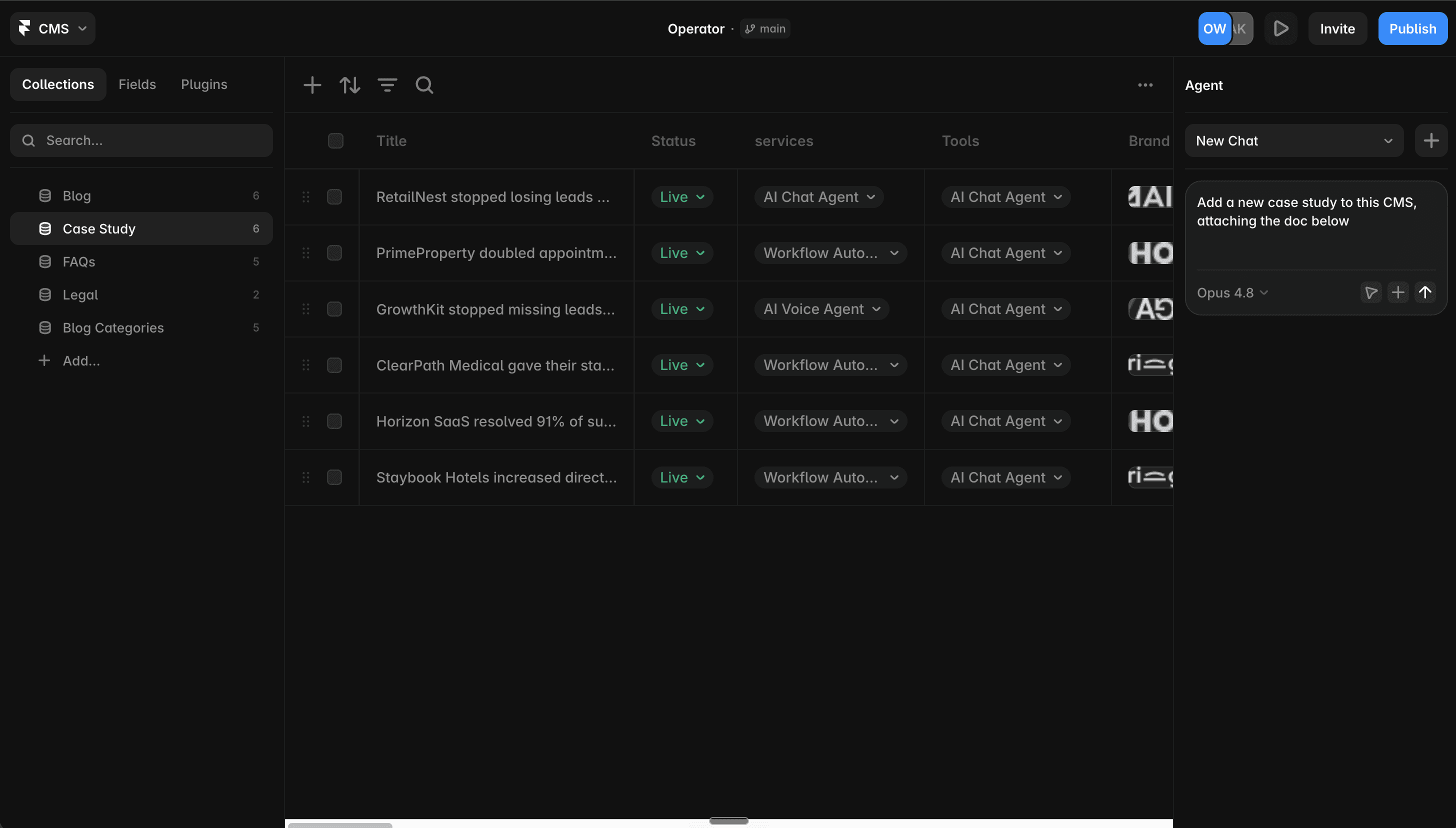
I use the Operator template throughout this piece as the concrete example. Operator is our AI-agency template: a multi-page build with a case-study CMS, blog CMS, pricing tiers, services pages, a manual-vs-AI comparison table, and an audit-booking flow. It is the kind of content-heavy, multi-section project where the agent pays for itself the most.
How to customize a Framer template by hand (and is the manual sequence still worth it)?
Even with Framer’s AI agent available, the manual sequence matters. It is faster than the agent for the first set of changes, and it builds the structural understanding the agent uses when it takes over.
Start with global styles. Framer’s design-token system means every color, font, and size variant in the template is stored in a few top-level variables. Change the primary color token once. Every button, heading, border, and background that references it updates across the entire site instantly. This is the highest-leverage thing you can do in the first five minutes. Do it before you touch anything else.
Then content. Work through the pages in order: homepage, then the pages that matter most to your business. Replace placeholder copy with your real copy. Swap images. Update the navigation labels. For a multi-CMS template like Operator, populate the case-study collection and the services collection. Real content makes everything else easier to evaluate.
Then sections. Templates ship with a logical set of sections. Some will fit your business out of the box. Some will not. Delete what does not serve you. Reorder what does. Framer’s layer panel makes this straightforward once you understand that each major section is usually a top-level frame or component.
Then components. Edit the master component, and every instance on every page updates. This is the thing most new-to-Framer buyers miss. They edit a card on one page, notice the same card on another page is unchanged, and wonder why. The answer is always: edit the component in the Assets panel, not the instance on the canvas.
Then an SEO pass before launch. For every page, fill in the page title and meta description in Framer’s SEO settings. Write unique, keyword-relevant titles. For images, add alt text. Per our Framer technical SEO checklist, Framer’s defaults are a starting line, not a finish line. The eleven-element checklist is worth running before you publish.
The whole manual sequence on a template like Operator runs four to eight hours for someone who knows Framer. The agent compresses parts of it, but the sequence itself is worth understanding.
What can Framer’s in-canvas AI agent actually do to a template you already own?
Framer 3.0 changed what is possible on an existing site. The key shift: the agent does not just help build new things. It edits what is already there, site-wide, in response to plain-language prompts.
The Agent tab lives in the redesigned right panel alongside the Style tab. Open it, choose your model, and describe what you want done. The agent shows you which layers it is touching in real time. Full undo works on everything it generates, including a Revert option that rolls back an entire prompt in one action.
For template customization specifically, here is what the agent handles well:
Copy rewrites, site-wide. Give it your positioning statement and ask it to rewrite the homepage, services section, and case-study titles to match. A copy audit Justin ran during the Framer 3.0 keynote showed the agent identifying the most-used adjective across an entire site (“bold,” used too often) and replacing it with tone-matched synonyms rather than doing a blind find-and-replace. That is the kind of work that takes an hour manually.
Section restructuring. Ask it to add a section, delete one, or reorder the flow. On Operator, for example, you might want to move the comparison table higher on the homepage and add a second testimonial row. The agent handles layout-level changes like these.
CMS wiring. The agent can create CMS collections from existing items, wire dynamic pages, add fields, and batch-populate. On Operator’s case-study CMS, that means taking a list of your real case studies and having the agent structure and wire them rather than manually creating each CMS item.
Responsive breakpoints. Ask it to generate tablet and phone variants of a section. This is one of the most time-consuming parts of manual customization and one of the places where the agent is genuinely strong.
SEO pass. The agent can rewrite passive voice to active, generate SEO titles and meta descriptions, add semantic HTML tags, and update alt text across the site. I link the agent’s SEO output to our Framer technical SEO checklist standard: run the agent’s pass first, then spot-check against the eleven-element checklist.
For the full picture of what shipped in Framer 3.0 and the technical architecture behind it, read our full Framer 3.0 breakdown. The piece also covers external agents (Claude Code via Framer CLI), which is relevant to the cost section below. For the wider AI feature set beyond 3.0 agents, the features survey covers Workshop, MCP, AI Translate, and the rest.
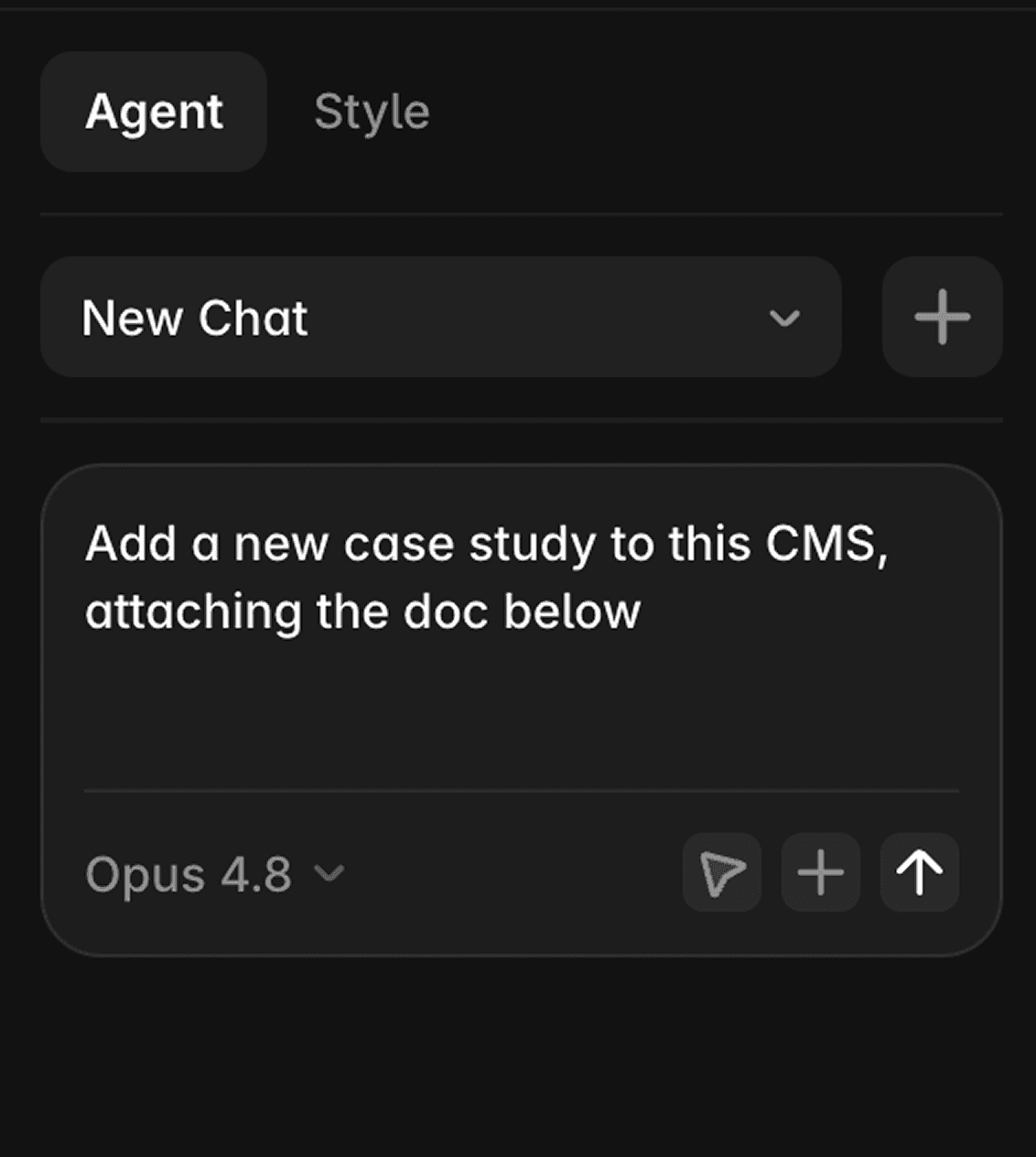
What happens if the AI agent breaks your template?
The biggest objection to letting an AI agent edit your site is the “what if it breaks everything” fear, and Framer 3.0’s branching system is the structural answer to it.
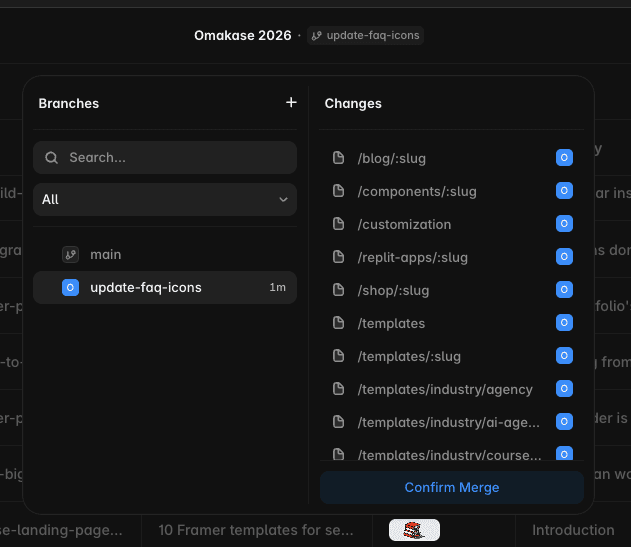
Here is how it works. When you or the agent works on a Framer project, you are working on a branch: an isolated copy of the live site. The “main” label at the top of the canvas is your stable version. Every branch you create is independent from main. The agent’s work happens on the branch, not on main.
Every individual agent message creates its own rollback point. If the agent’s copy rewrite is close but not right, you roll back that one message. If a whole session went sideways, you delete the branch. Main is untouched the entire time.
On Operator, a practical example: you want the agent to restyle the services section from a light-background card layout to a dark-panel layout. You create a branch, prompt the agent, review the output, refine it in a second message, merge to main. If the second message made something worse, you roll back just that message. The merge is one click.
This is not a niche safety feature for careful professionals. It is the basic operating mode. You and the agent always work on copies. Main only changes when you say so.
How much does it cost to customize a Framer template with AI?
This is the section nobody writes, and the credit math is honest and worth knowing before you commit to an agent-heavy workflow.
Framer uses AI Credits as its unit for AI features. The figures below are from Framer’s published June 16, 2026 announcement and are cross-referenced in our Framer 3.0 breakdown.
Operation costs at base model (GPT-5.5, 1x multiplier):
Operation | Credits |
|---|---|
Small edit | ~50 |
Large edit | ~100 |
Responsive layout | ~150 |
Full landing page | ~300 |
Model multipliers:
Model | Multiplier |
|---|---|
GPT-5.5 | 1x (base) |
Sonnet 4.6 | 0.9x |
Opus 4.8 | 1.8x |
Sonnet 4.6 is the cost-efficient pick for straightforward customization work (copy rewrites, CMS wiring, SEO passes). Opus 4.8 is worth the premium for complex structural judgment tasks.
Framer’s own internal estimates: approximately $0.50 for a medium edit, approximately $3 for a full page. One early tester spent approximately $300 to build a full site, saving what they described as two to three weeks of manual work.
The Pro plan includes 3,000 credits per month. That is roughly ten full landing pages, or a large number of targeted edits. For a typical template customization (not building from scratch), you are usually doing targeted edits, not full-page generations.
If you want to run your own number across plan tiers, the Framer website cost calculator at oma-kase.com/tools/framer-website-cost handles the math including editors, add-ons, and regional pricing.
One important escape hatch: if you use external agents via the Framer CLI (Claude Code is the primary example), those sessions run on your own LLM subscription tokens, not Framer credits. No Framer credits consumed. The tradeoff is that you need a Claude Code setup and a working prompt discipline to use external agents effectively. But for heavy customization work, the BYOL route is worth knowing about.
What if you run out of Framer AI credits mid-customization?
You have two options, and the right one depends on how fast you need to move.
The Free plan gives you 500 credits per day. That resets every 24 hours with no rollover. A typical customization session on a multi-page template like Operator, copy rewrites, a responsive pass, and a CMS wiring run, can burn through that daily allowance in a single focused session. When it does, you either wait until tomorrow’s reset or upgrade to a paid plan.
The Basic plan includes 1,000 credits per month. Pro includes 3,000. Those are monthly pools, not daily ones, so you are not forced to break your working session into fragments and wait overnight. If you are mid-customization and close to launching, pausing for a daily reset costs more in momentum than the plan upgrade costs in money.
The practical math: a targeted customization run (not building from scratch) typically involves several large edits, a responsive layout pass, and an SEO pass. At base model rates, that is roughly 450 to 600 credits. If you are on Free, that is most or all of your daily allowance in one go. If you want to run multiple iteration rounds in the same sitting, a paid plan is the cleaner option.
Use the Framer website cost calculator to size your plan across editors, add-ons, and credit usage before you commit.
Which customization jobs should you hand to the agent, and which ones do you keep human?
The short answer: give the agent well-specified, repeatable, additive work, and keep the brand-defining judgment calls yourself. Not “use AI for everything.” Not “ignore the agent and do it manually.” The skill is knowing the boundary.
The agent is strong at work that is well-specified, repeatable, and additive. It builds on existing structure, matches existing style systems, and handles volume tasks (30 copy blocks, 20 CMS items, 8 pages of SEO passes) without fatigue.
The agent is weak at work that requires taste, visual judgment, and strategic positioning. It can execute a brief. It cannot write the brief.
Customization job | Hand to the agent | Keep human |
|---|---|---|
Swap copy site-wide to your business | ✓ (with your review) | |
Batch-replace images and logos | ✓ | |
SEO pass (titles, meta, alt text) | ✓ | |
Generate responsive breakpoints | ✓ | |
Wire and populate CMS collections | ✓ | |
Componentize repeated elements | ✓ | |
Match template to your existing style system | ✓ (it is good at this) | |
Define a brand-new visual direction or art direction | ✓ | |
Original layout concepts beyond the template’s range | ✓ | |
Strategic positioning and messaging hierarchy | ✓ | |
Taste-critical polish (the final 10% that makes it feel bespoke) | ✓ |
The honest version of this table is also the honest version of what customization services are for. The agent handles the volume of well-defined work. But if you are asking “what should this site say about us, how should it feel, and does it represent our brand accurately,” those are human calls. They require taste, knowledge of your business, and judgment the agent cannot supply.
That is not a failure of the agent. It is the boundary of where it earns its keep.
So what does the full picture look like once you put this together?
Framer templates are customizable. Fully, directly, and in 2026, with an AI agent that can handle a significant portion of the repetitive work. The two-path approach, manual sequence for structure and understanding, agent-directed for volume and iteration, gets you from purchased template to launched site faster than either approach alone.
The branching system means the “I’ll break it” fear is gone. Every change is reversible. Main stays clean. You merge when you are ready.
What remains genuinely human is the brand-defining work: the visual direction, the positioning, the messaging architecture. The agent does not do that. And it should not.
If you want a production-ready starting point already structured for the CMS-driven, multi-page work agents handle best, browse our template catalog at oma-kase.com/templates. Use code OMAKASE20 for 20% off any template.
And when the work crosses into brand-defining territory, the strategic direction and taste-critical polish the decision table keeps in the “keep human” column, that is exactly what our customization service is for.
FAQ
Are Framer templates customizable after you buy them?
Yes, fully. When you purchase a Framer template and duplicate it into your own project, it becomes a standalone Framer project you own completely. The original creator’s updates never touch your copy. Every element, from text and images to CMS schemas and component variants, is editable without restrictions. The steps to how to customize a Framer template after purchase are the same as working in any other Framer project: duplicate first, then edit global styles, content, sections, and components in any order you choose.
Can Framer’s AI agent edit my whole existing site, or just build new pages?
As of Framer 3.0, launched June 16, 2026, the in-canvas AI agent edits existing sites site-wide. It can rewrite copy across your entire project, add or restructure sections, restyle colors and typography to match your system, generate responsive breakpoints, wire CMS collections, and run a full SEO pass covering titles, meta descriptions, and alt text. All of this works on a template you have already purchased and duplicated into your own project.
Will the AI agent break my template’s design?
Framer 3.0’s branching system makes every agent edit reversible. You and the agent always work on an isolated branch copy of the project, not on main. Every individual agent message creates its own rollback point, so you can undo at the message level. If a whole session went wrong, delete the branch. Your main project stays untouched until you explicitly click Apply to main. The “I’ll break it” scenario is structurally prevented.
How much does it cost to customize a template with Framer’s AI?
The cost depends on what you ask the agent to do. At the base model (GPT-5.5), a small edit costs approximately 50 credits, a large edit approximately 100, a responsive layout approximately 150, and a full landing page approximately 300. Sonnet 4.6 runs at 0.9x base cost; Opus 4.8 at 1.8x. Framer’s Pro plan includes 3,000 credits per month. For typical template customization (targeted edits rather than building from scratch), most sessions stay well under Pro limits. One early tester spent approximately $300 to build a full site, saving an estimated two to three weeks of manual work. If you use Claude Code or another external agent via the Framer CLI, those sessions run on your own LLM tokens and do not consume Framer credits at all.